Skills & Customization
15 Best OpenClaw Skills on ClawHub (2026 Edition)
22 min read · Updated 2026-03-08
By DoneClaw Team · We run managed OpenClaw deployments and write from hands-on production experience.
OpenClaw skills are the building blocks that turn your AI agent from a chatbot into a personal automation powerhouse. Each skill is a markdown file stored in ~/.openclaw/skills/ inside your container, defining a trigger command, a system prompt, and detailed instructions for how your agent should handle specific tasks. New to OpenClaw? Start with the setup guide before installing skills. ClawHub is the community skill library where users share, discover, and install pre-built skills. As of 2026, ClawHub hosts hundreds of skills across categories like productivity, development, business operations, home automation, and health tracking. This comprehensive guide covers the 15 best OpenClaw skills available in 2026, with complete installation instructions, real file formats you can copy directly, configuration tips, and common pitfalls to avoid. Whether you are a new OpenClaw user or a power user looking to optimize your setup, this guide has everything you need.
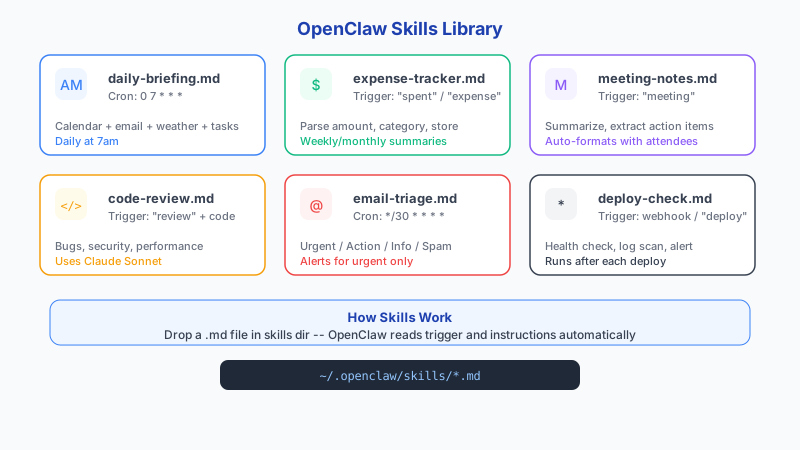
1. How OpenClaw Skills Work
A skill is a markdown file in ~/.openclaw/skills/ that tells your agent how to handle a specific command. When you send a message starting with the trigger (like /briefing), OpenClaw loads the skill file and uses its instructions as the system prompt. Skills can reference memory, call tools, and produce structured output.
Research shows AI assistants save an average of 26 minutes per day according to the Microsoft 2024 Work Trend Index. Developers report being 55% faster with AI coding tools (GitHub Copilot study). However, METR's study found AI made experienced developers 19% slower on real open-source tasks, suggesting AI works best for well-defined, repetitive work rather than novel problem-solving. The skills below are designed around that principle: structured, repeatable workflows where AI agents excel.
ClawHub is the community repository where users publish and share skills. You can browse ClawHub by category, sort by popularity or recency, and install skills with a single command. As of early 2026, ClawHub hosts skills across productivity, development, business, health, home automation, and creative writing categories.
Here is the basic file format every skill follows:
# ~/.openclaw/skills/example-skill.md

## Trigger
/example

## Description
One-line description of what this skill does.

## Instructions
You are a [role]. When triggered, do [specific task].

Output format:
- [structured format description]

## Rules
- Keep responses under [X] words
- Never [constraint]
- Always [requirement]
2. Top Skills Overview Table
Before diving into each skill individually, here is a quick reference table of all 15 skills covered in this guide. Use this to jump to the ones most relevant to your workflow.
Top 15 OpenClaw Skills (2026)

| #  | Skill Name      | Trigger        | Category         | Time Saved  | Difficulty |
|----|-----------------|----------------|------------------|-------------|------------|
| 1  | Morning Briefing| /briefing      | Productivity     | 15 min/day  | Easy       |
| 2  | Expense Tracker | /expense       | Productivity     | 10 min/day  | Easy       |
| 3  | Meeting Summary | /meeting       | Productivity     | 20 min/mtg  | Easy       |
| 4  | Habit Tracker   | /habits        | Productivity     | 5 min/day   | Easy       |
| 5  | Research Assist | /research      | Productivity     | 30 min/task | Medium     |
| 6  | Code Review     | /review        | Development      | 20 min/PR   | Medium     |
| 7  | Email Triage    | /triage        | Business         | 25 min/day  | Medium     |
| 8  | Weather Alert   | /weather       | Personal         | 5 min/day   | Easy       |
| 9  | News Digest     | /news          | Personal         | 15 min/day  | Easy       |
| 10 | Deploy Checker  | /deploy-check  | Development      | 10 min/day  | Medium     |
| 11 | Invoice Gen     | /invoice       | Business         | 30 min/inv  | Medium     |
| 12 | Standup Report  | /standup       | Development      | 10 min/day  | Easy       |
| 13 | Home Automation | /home          | Home             | 15 min/day  | Hard       |
| 14 | Learning Tracker| /learn         | Personal         | 20 min/day  | Easy       |
| 15 | Content Writer  | /draft         | Creative         | 45 min/post | Medium     |
3. Skills 1-5: Personal Productivity
These five skills handle daily personal workflows. Each one saves 10-30 minutes per day when triggered on a schedule or manually. They are the most popular skills on ClawHub because they deliver immediate, tangible value from day one.
Productivity skills work best when paired with OpenClaw's cron job system. Set your morning briefing to run at 7am, your expense summary to run at end of day, and your habit tracker to prompt you at a consistent time. The combination of scheduled triggers and persistent memory creates a personal assistant that genuinely knows your routine.
# Skill 1: /briefing — Daily Morning Briefing
# File: ~/.openclaw/skills/daily-briefing.md

## Trigger
/briefing

## Description
Generate a morning briefing with weather, calendar, and task summary.

## Instructions
You are a personal briefing assistant. When triggered:
1. Summarize any unread messages from the last 12 hours
2. List today's calendar events if available in memory
3. Show the top 3 priority tasks from recent conversations
4. Include weather for the user's location if /weather is configured
5. Keep the entire briefing under 250 words

Output format:
[Date] Morning Briefing
Messages: [count] unread — [1-line summary of each]
Today: [calendar items]
Priorities: [top 3 tasks]
Weather: [conditions, high/low]

## Rules
- Pull data from memory, not external APIs (unless /weather configured)
- Prioritize by deadline proximity, then by importance
- If no messages or events, say so briefly — do not pad the briefing
# Skill 2: /expense — Expense Tracker
# File: ~/.openclaw/skills/expense-tracker.md
## Trigger
/expense
## Description
Log and categorize an expense from a natural language description.
## Instructions
Parse the user message after /expense and extract:
- Amount (number)
- Category (food, transport, software, housing, entertainment, health, other)
- Description (short label)
- Date (today if not specified)
Respond with a confirmation line:
Logged: $[amount] — [category] — [description] — [date]
Monthly total: $[running total for current month]
Store in memory under “expenses/[YYYY-MM]” for monthly tracking.
When triggered with just “/expense” and no arguments, show the current
month's expense summary grouped by category with totals.
## Rules
- If amount is ambiguous, ask for clarification
- Always confirm the logged entry and show running monthly total
- Support “/expense report” for a full monthly breakdown
- Support “/expense undo” to remove the last logged entry# Skill 3: /meeting — Meeting Summarizer
# File: ~/.openclaw/skills/meeting-summarizer.md
## Trigger
/meeting
## Description
Summarize meeting notes and extract action items.
## Instructions
The user will paste or describe meeting notes after /meeting.
Produce:
1. **Summary** (3-5 sentences max)
2. **Decisions Made** (bullet list)
3. **Action Items** (who, what, by when)
4. **Open Questions** (unresolved items)
5. **Follow-up Date** (if mentioned or inferred)
Store the summary in memory under “meetings/[YYYY-MM-DD]-[topic]”
for future reference.
## Rules
- If no names are mentioned, use “Team” as the assignee
- Flag any deadline that is less than 48 hours away
- Keep the summary factual, not interpretive
- If the user asks “what did we decide about X”, search meeting memory# Skill 4: /habits — Habit Tracker
# File: ~/.openclaw/skills/habit-tracker.md
## Trigger
/habits
## Description
Track daily habits and show streak data.
## Instructions
When triggered with no arguments, show today's habit checklist
from memory (habits/config). When triggered with a habit name
(e.g., /habits exercise), mark it complete for today.
Show streaks: current streak and longest streak for each habit.
Output format:
[completed/pending] Habit Name — [current streak] day streak (best: [longest])
Weekly completion rate: [percentage]
## Rules
- Store completions in memory under “habits/[YYYY-MM-DD]”
- A streak breaks if a day is missed
- Support adding new habits with “/habits add [name]”
- Support removing habits with “/habits remove [name]”
- Show weekly completion percentage for each habit
- Send a reminder if a habit is usually completed by this time but is not yet done# Skill 5: /research — Research Assistant
# File: ~/.openclaw/skills/research-assistant.md
## Trigger
/research
## Description
Research a topic and produce a structured summary with sources.
## Instructions
When the user sends /research [topic]:
1. Use available tools to search for current information
2. Synthesize findings into 3-5 key points
3. Note any conflicting information found
4. Suggest 2-3 follow-up questions
5. Store findings in memory under “research/[topic]” for later reference
Output format:
## [Topic]
**Key Findings:**
1. [finding with source context]
2. [finding]
3. [finding]
**Conflicts/Uncertainties:** [any disagreements in sources]
**Follow-up Questions:** [suggested next research steps]
**Saved to:** research/[topic]
## Rules
- Distinguish facts from opinions
- Note when information may be outdated
- Keep total output under 500 words
- If the user has previously researched this topic, reference past findings4. Skills 6-10: Developer and Business Workflows
These skills target recurring developer and business tasks. They work best when paired with cron jobs for automated execution.
AI-powered code review tools like Greptile catch 82% of bugs compared to under 20% for traditional static analysis, with a 5-15% false positive rate. The /review skill below uses the same principle: let the AI handle first-pass analysis so you focus on architectural decisions.
Business skills like /triage and /invoice become more valuable over time because OpenClaw's persistent memory learns your patterns. After a month of email triage, the agent understands which senders are high-priority and which topics need immediate attention. This context-aware behavior is impossible in stateless automation tools.
# Skill 6: /review — Code Review Summary
# File: ~/.openclaw/skills/code-reviewer.md

## Trigger
/review

## Description
Summarize a code diff or PR description with actionable feedback.

## Instructions
The user will paste a code diff or PR description after /review.
Analyze and produce:
1. **What Changed** (1-2 sentences)
2. **Potential Issues** (bugs, security, performance)
3. **Suggestions** (concrete improvements with code examples)
4. **Verdict** (approve / request changes / needs discussion)

## Rules
- Focus on bugs and security issues first
- Provide specific line references when possible
- Skip style nitpicks unless they affect readability
- Keep feedback actionable, not vague
- Remember past reviews for the same project to track recurring patterns
# Skill 7: /triage — Email Triage
# File: ~/.openclaw/skills/email-triage.md
## Trigger
/triage
## Description
Categorize an email and suggest a response action.
## Instructions
The user will forward or paste an email after /triage.
Categorize as one of:
- URGENT (needs response within 4 hours)
- ACTION (has a task or deadline)
- INFO (FYI, no action required)
- SPAM (promotional, unsubscribe candidate)
For URGENT and ACTION, extract:
- Deadline (if mentioned)
- Required action (1 sentence)
- Draft reply (2-3 sentences)
Check memory for previous interactions with the sender to
provide additional context.
## Rules
- Default to INFO if unclear
- Never auto-send replies
- Flag financial or legal content for manual review
- Learn from corrections: if user reclassifies, update the model# Skill 8: /weather — Weather Alert
# File: ~/.openclaw/skills/weather-alert.md
## Trigger
/weather
## Description
Get current weather conditions and alerts for a location.
## Instructions
When triggered, check weather for the user's default location
(stored in memory under “preferences/location”).
Report: temperature, conditions, precipitation chance,
and any severe weather alerts.
If no location is set, ask the user to set one with:
/weather set [city, country]
## Rules
- Use web search tools to get current weather data
- Include tomorrow's forecast if conditions are changing
- Flag any severe weather warnings prominently
- Support multiple saved locations with /weather [location-name]# Skill 9: /news — News Digest
# File: ~/.openclaw/skills/news-digest.md
## Trigger
/news
## Description
Compile a brief news digest on specified topics.
## Instructions
Check the user's topic preferences (memory: preferences/news-topics).
Default topics: technology, AI, business.
For each topic, find 2-3 recent developments and summarize
each in 1-2 sentences. Include source context.
Output format:
## News Digest — [Date]
### [Topic 1]
- [headline]: [1-2 sentence summary]
- [headline]: [summary]
### [Topic 2]
...
## Rules
- Only include news from the last 48 hours
- Skip duplicates across topics
- Keep total digest under 300 words
- Support custom topics with “/news [topic]”
- Track which stories the user has already seen to avoid repeats# Skill 10: /deploy-check — Deploy Checker
# File: ~/.openclaw/skills/deploy-checker.md
## Trigger
/deploy-check
## Description
Run pre-deployment checks on a list of URLs and report status.
## Instructions
Check each URL stored in memory (ops/deploy-urls) for:
1. HTTP status code (200 = OK, anything else = alert)
2. Response time (flag if > 2 seconds)
3. SSL certificate expiry (flag if < 14 days)
Output format:
## Deploy Check — [timestamp]
[status] example.com — 200 OK — 340ms — SSL expires in 89 days
[alert] api.example.com — 503 — service unavailable
[warning] staging.example.com — 200 OK — 3.2s — SLOW
## Rules
- Run all checks in parallel
- Alert on any non-200 status code
- Store results in memory for trend tracking
- Support adding URLs with “/deploy-check add [url]”
- Compare with previous check results and flag regressions5. Skills 11-15: Advanced Workflows
These five skills push OpenClaw into more specialized territory: business operations, team coordination, home automation, learning management, and content creation. They demonstrate the full power of the skill system when combined with persistent memory and scheduled execution.
Advanced skills benefit most from OpenClaw's memory system. The invoice generator remembers your client details and past invoices. The standup report knows what you worked on yesterday because it was part of yesterday's conversations. The learning tracker builds a knowledge graph over weeks and months. This is where OpenClaw's agent architecture creates capabilities that simple automation tools cannot match.
# Skill 11: /invoice — Invoice Generator
# File: ~/.openclaw/skills/invoice-generator.md

## Trigger
/invoice

## Description
Generate a professional invoice from a natural language description.

## Instructions
When the user sends /invoice [client] [amount] [description]:
1. Look up client details from memory (clients/[name])
2. Generate a sequential invoice number (invoices/counter)
3. Calculate tax if configured (preferences/tax-rate)
4. Format as a clean, professional invoice

If client is new, ask for: company name, address, email, payment terms.
Store for future invoices.

Output format:
INVOICE #[number]
Date: [today]
Due: [date based on payment terms]
From: [your business details from memory]
To: [client details]
---
[description] ........... $[amount]
Subtotal: $[amount]
Tax ([rate]%): $[tax]
Total: $[total]
---
Payment: [instructions from memory]

## Rules
- Auto-increment invoice numbers
- Default payment terms: Net 30
- Store all invoices in memory for year-end summaries
- Support “/invoice list” to show all invoices for current month
# Skill 12: /standup — Daily Standup Report
# File: ~/.openclaw/skills/standup-report.md
## Trigger
/standup
## Description
Generate a standup report based on yesterday's conversations and tasks.
## Instructions
Review the last 24 hours of conversations and memory updates.
Produce a standup report:
1. **Yesterday:** What was completed (based on conversations, task completions)
2. **Today:** What is planned (based on upcoming deadlines, open tasks)
3. **Blockers:** Any mentioned blockers or waiting-on items
Keep each section to 2-4 bullet points. Be specific with task names
and project references from memory.
## Rules
- Only include items actually discussed or completed — do not fabricate
- Reference specific projects and tasks by name
- Flag overdue items from previous standups
- Support team standups with “/standup [team-member-name]” if multiple
users share context# Skill 13: /home — Home Automation Controller
# File: ~/.openclaw/skills/home-automation.md
## Trigger
/home
## Description
Control smart home devices and check home status via natural language.
## Instructions
Parse natural language commands and translate to smart home actions
via configured webhooks (stored in memory: home/devices).
Supported commands:
- “/home lights [room] [on/off/dim]” — control lights
- “/home temperature [room] [degrees]” — adjust thermostat
- “/home status” — show all device states
- “/home scene [name]” — activate a preset scene
Device webhooks are configured in memory under “home/devices/[name]”
with fields: url, method, auth_header, payload_template.
## Rules
- Confirm every action before executing (safety)
- Log all commands in memory under “home/log/[date]”
- Support natural language: “turn off the bedroom lights” should work
- If a device is unreachable, report the error and retry once
- Never execute destructive commands (e.g., unlock doors) without
explicit confirmation# Skill 14: /learn — Learning Tracker
# File: ~/.openclaw/skills/learning-tracker.md
## Trigger
/learn
## Description
Track learning progress, create study plans, and quiz on past material.
## Instructions
Modes:
- “/learn [topic] [notes]” — log what you learned today
- “/learn quiz [topic]” — generate a quiz from stored notes
- “/learn plan [subject] [deadline]” — create a study schedule
- “/learn progress” — show learning stats and streaks
Store all learning entries in memory under “learning/[topic]/[date]”.
Build a knowledge graph over time to identify connections between topics.
## Rules
- Quiz questions should reference actual notes, not generic knowledge
- Study plans should account for available time (from habits/schedule)
- Track learning streaks similar to /habits
- Suggest review sessions for material older than 7 days (spaced repetition)
- Keep quiz sessions to 5 questions unless more are requested# Skill 15: /draft — Content Writer
# File: ~/.openclaw/skills/content-writer.md
## Trigger
/draft
## Description
Draft blog posts, social media content, or emails from a brief.
## Instructions
When the user sends /draft [type] [topic]:
- Types: blog, tweet, linkedin, email, newsletter
- Use memory to maintain consistent voice and style
- Reference past drafts for tone consistency
Output by type:
- blog: 500-800 word draft with headline, intro, body, conclusion
- tweet: 280 chars max, 3 variations
- linkedin: Professional tone, 150-300 words, 3 variations
- email: Subject line + body, matched to recipient context from memory
- newsletter: Section headers + body, matched to past newsletter style
## Rules
- Never publish directly — always present as draft for review
- Match the user's writing style from previous drafts in memory
- Include a brief note on target audience and call-to-action
- Support “/draft revise [feedback]” to iterate on the last draft
- Store all drafts in memory under “drafts/[type]/[date]”Get your own AI agent today
Persistent memory, channel integrations, unlimited usage. DoneClaw deploys and manages your OpenClaw instance so you just chat.
Get Started6. How to Install Skills from ClawHub
ClawHub makes skill installation straightforward. You can browse the library at clawhub.openclaw.com, search by category or keyword, and install skills directly into your container. Here are the three main installation methods.
Method 1: Direct copy. Download the skill markdown file from ClawHub and copy it into your container. This is the simplest approach and gives you full control over the file contents.
Method 2: Docker cp. If you have the skill file on your host machine, use docker cp to copy it into the running container. This works well for skills you have customized locally.
Method 3: Write directly. For quick installations or when you are modifying a skill from ClawHub, write the file directly inside the container using docker exec.
After installing any skill, test it immediately with a simple trigger to verify it loads and responds correctly. Then try edge cases before relying on it for important tasks.
# Method 1: Copy a skill file into the running container
docker cp daily-briefing.md openclaw-agent:/home/node/.openclaw/skills/

# Method 2: Write directly inside the container
docker exec openclaw-agent sh -c 'cat > /home/node/.openclaw/skills/daily-briefing.md << “SKILL”
## Trigger
/briefing
## Instructions
Generate a morning briefing...
SKILL'

# Method 3: List installed skills
docker exec openclaw-agent ls -la /home/node/.openclaw/skills/

# Verify a skill loads correctly
# Send “/briefing” via your connected channel (Telegram, Discord, etc.)
7. Scheduling Skills with Cron Jobs
Many of the best skills are even more powerful when they run automatically on a schedule. OpenClaw supports cron-based scheduling, which lets you trigger skills at specific times without any manual intervention.
The most common scheduling pattern is running /briefing at 7am, /news at 8am and 5pm, /deploy-check every 30 minutes, and /habits at 9pm as a daily check-in. This turns your OpenClaw agent into a proactive assistant that reaches out to you with relevant information rather than waiting for you to ask.
For DoneClaw managed hosting users, cron scheduling is configured through the web dashboard — no command line needed.
# Add scheduled skills to your crontab
crontab -e

# Morning briefing at 7am
0 7 * * * docker exec openclaw-agent node /app/openclaw.mjs run-skill daily-briefing

# News digest at 8am and 5pm
0 8,17 * * * docker exec openclaw-agent node /app/openclaw.mjs run-skill news-digest

# Deploy check every 30 minutes during business hours
*/30 9-18 * * 1-5 docker exec openclaw-agent node /app/openclaw.mjs run-skill deploy-checker

# Habit check-in at 9pm
0 21 * * * docker exec openclaw-agent node /app/openclaw.mjs run-skill habit-tracker

# Weekly expense report every Friday at 6pm
0 18 * * 5 docker exec openclaw-agent node /app/openclaw.mjs run-skill expense-tracker

# Monthly invoice reminder on the 1st at 9am
0 9 1 * * docker exec openclaw-agent node /app/openclaw.mjs run-skill invoice-generator
8. Tips for Writing Effective Skills
Keep each skill focused on one task. A skill that tries to handle email triage AND meeting scheduling will produce mediocre results at both. Two separate skills with clear boundaries outperform one bloated skill every time.
Include concrete output format examples in your skill instructions. Models follow formatting instructions much more reliably when they see the exact structure you expect. Vague instructions like “summarize neatly” produce inconsistent results. Show the exact format with placeholder values.
Test with 5 varied inputs before relying on a skill. Send it edge cases: empty input, very long input, ambiguous input, and input in a different language. Fix the instructions based on where it fails rather than hoping it works.
Use the Rules section to set hard constraints. Models respect explicit rules (“never exceed 200 words”, “always confirm before executing”) more consistently than soft suggestions. List your non-negotiable constraints as separate bullet points in the Rules section.
Leverage memory references in your instructions. Skills that read from and write to memory become more useful over time. A research skill that checks for previous research on the same topic, or an expense tracker that knows your budget categories, delivers better results than a stateless version.
Version your skills. When you update a skill, keep the old version as skill-name-v1.md so you can revert if the new version produces worse results. Once the new version is stable, delete the old one.
9. Common Mistakes to Avoid
Overloading a single skill is the most common mistake. A skill that handles 5 different commands with branching logic will produce inconsistent results. Split it into 5 separate skills with clear, single-purpose triggers.
Forgetting to specify output format leads to unpredictable responses. Without a clear format section, the model will generate a different structure every time. Always include an explicit output template.
Not testing with edge cases causes failures in production. A /triage skill that works perfectly with English emails may break when it receives an email in Japanese. A /research skill may hallucinate sources if not explicitly told to use search tools.
Installing skills from untrusted sources without review is a security risk. Always read the full markdown file before installing. Look for instructions that request shell access, network calls to unknown URLs, or file operations outside expected scope. See our security guide for a complete vetting process.
Not scheduling skills that benefit from automation. Skills like /briefing, /deploy-check, and /news are designed to be proactive. If you only trigger them manually, you are missing their primary value.
10. Most Popular Skills on ClawHub
Based on install counts and community ratings as of March 2026, these are the most popular skills on ClawHub. Popularity correlates strongly with daily time savings — the skills people install first are the ones that eliminate repetitive daily tasks.
The Daily Briefing (/briefing) leads by a wide margin. It compiles unread messages, calendar events, priorities, and weather into a single morning summary. Most users schedule it at 7am and receive it in Telegram before they start their day. It saves an average of 15 minutes of manual checking across multiple apps.
Expense Tracker (/expense) ranks second. Users log expenses with natural language messages like "/expense $12.50 lunch sushi" and get automatic categorization, monthly totals, and budget tracking. The persistent memory means your agent learns your spending categories over time.
Code Review (/review) is the most popular developer skill. Paste a diff or PR description and get structured feedback covering potential bugs, security issues, and improvement suggestions. Developers report it catches issues that would otherwise reach production.
Research Assistant (/research) rounds out the top four. It searches for information on a topic, synthesizes findings into key points, notes conflicting sources, and saves results to memory for later reference. The memory integration means follow-up research builds on previous findings rather than starting from scratch.
Other frequently installed skills include News Digest (/news), Meeting Summarizer (/meeting), Email Triage (/triage), and Standup Report (/standup). The common thread is clear: skills that automate information gathering and summarization are the most valuable because they replace tasks that humans do every day but find tedious.
11. Recommended ClawHub Skills for Beginners
If you are new to OpenClaw, start with these beginner-friendly skills. They are easy to install, require minimal configuration, and deliver immediate value so you can see the power of the skill system before building custom skills. For the best experience, pair these skills with a capable model like Gemini or Claude.
Start with /briefing (Daily Briefing). It works out of the box with no configuration beyond installation. Send "/briefing" from Telegram or Discord and your agent summarizes your recent activity. Schedule it with a cron job for a hands-free morning routine. This single skill demonstrates memory, scheduling, and channel integration — the three pillars of OpenClaw.
Add /habits (Habit Tracker) next. It is simple to use: "/habits add exercise" to create a habit, "/habits exercise" to mark it done, "/habits" to see your dashboard with streaks. The persistent memory tracks your progress over weeks and months, and the streak visualization is surprisingly motivating.
Install /expense (Expense Tracker) for practical daily use. Log expenses in natural language and get automatic categorization. After a week of use, your agent knows your typical spending patterns and categories. Run "/expense report" at month end for a complete breakdown.
For developers, add /review (Code Review) and /standup (Standup Report). The code review skill gives you a second pair of eyes on any diff. The standup report automatically summarizes what you worked on yesterday by reading your conversation history — no manual tracking needed.
For information workers, add /triage (Email Triage) and /news (News Digest). Email triage categorizes messages as urgent, action-required, informational, or spam with suggested responses. The news digest compiles headlines from your chosen topics into a daily summary. Both skills save 15-25 minutes per day of manual scanning.
Avoid starting with advanced skills like /home (Home Automation) or /invoice (Invoice Generator) until you are comfortable with the basics. These require webhook configuration and external service setup that can be frustrating for new users. Master the simple skills first, then graduate to the advanced ones.
Conclusion
These 15 skills cover the highest-value automation patterns for personal, professional, and business use in 2026. Start with one or two that match your daily workflow, test them thoroughly, and add more as needed. The markdown skill format makes it easy to iterate on instructions without touching any code. For pre-built skills, browse ClawHub and install with a single copy command. For DoneClaw managed hosting users at doneclaw.com, skill installation and scheduling are available through the web dashboard with no command line required.
Skip the setup? DoneClaw deploys OpenClaw for you — $29/mo with 7-day free trial, zero configuration.
Get your own AI agent today
Persistent memory, channel integrations, unlimited usage. DoneClaw deploys and manages your OpenClaw instance so you just chat.
Get StartedFrequently asked questions
How do I install OpenClaw skills?
Skills are markdown files stored at ~/.openclaw/skills/ inside your container. Install by copying the .md file into that directory using docker cp, or write it directly with docker exec. On DoneClaw managed hosting, use the web dashboard to install skills without command line access.
Where do skill files go inside the container?
Skills live at ~/.openclaw/skills/ inside the container, which maps to the Docker volume. Create one .md file per skill with a ## Trigger section that defines the command. The file name does not matter — only the trigger command inside the file.
What are the most popular ClawHub skills in 2026?
The most popular skills on ClawHub in 2026 are the Daily Briefing (/briefing), Expense Tracker (/expense), Code Review (/review), and Research Assistant (/research). Productivity skills consistently rank highest because they deliver immediate daily time savings.
Can I use skills from Telegram and Discord at the same time?
Yes. Skills are channel-agnostic. Send /briefing from Telegram or Discord and the same skill runs with the same memory context. Your agent shares memory across all connected channels.
How many skills can I run at once?
There is no hard limit. Skills are loaded on demand when their trigger is matched. Having 50 skill files does not slow down your agent because only the triggered skill is loaded into context. Most users run 5-15 skills.
How do I write an OpenClaw skills tutorial?
Start with the basic skill template: a markdown file with Trigger, Description, Instructions, and Rules sections. Write clear, specific instructions with an explicit output format. Test with 5 varied inputs. Publish to ClawHub once stable. See the detailed format examples in this article for templates you can copy directly.
Can I schedule skills to run automatically?
Yes. Use cron jobs on your host machine to trigger skills at specific times. For example, run your morning briefing at 7am with: 0 7 * * * docker exec openclaw-agent node /app/openclaw.mjs run-skill daily-briefing. DoneClaw managed hosting offers scheduling through the web dashboard.
What are the most popular skills on ClawHub?
The most popular skills on ClawHub as of 2026 are Daily Briefing (/briefing), Expense Tracker (/expense), Code Review (/review), and Research Assistant (/research). Productivity and developer skills consistently rank highest because they save 15-30 minutes of daily manual work. News Digest, Meeting Summarizer, and Email Triage are also in the top 10.
How do I find recommended skills?
Browse ClawHub at clawhub.openclaw.com and sort by popularity or category. For beginners, start with /briefing (Daily Briefing), /habits (Habit Tracker), and /expense (Expense Tracker) — they require no configuration and deliver immediate value. Developers should add /review (Code Review) and /standup (Standup Report). Check the ratings and install counts to find community-vetted skills.